
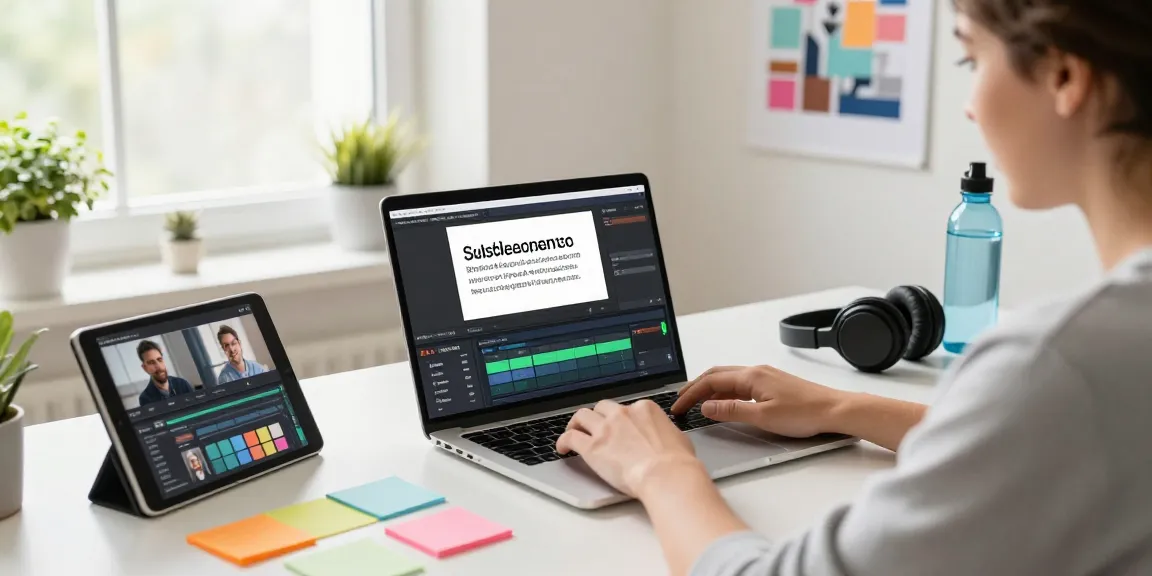

Understanding Video Text Overlays
In today’s fast-paced digital landscape, engaging video content is more critical than ever. Video text overlays have emerged as essential tools for capturing attention, conveying messages effectively, and enhancing viewer engagement. By adding text directly to videos, creators can ensure that key information is highlighted, making it easier for audiences to retain and understand the content. Furthermore, implementing text in videos can cater to a diverse range of viewing contexts, including situations where sound is muted. For anyone looking to write text on video, understanding the mechanics behind text overlays is fundamental for maximizing the impact of video content.
What is a Text Overlay and Why It Matters?
A text overlay is a graphic element placed on top of a video frame that serves various purposes, from providing subtitles to enhancing storytelling. This technique is utilized not only to make information more digestible but also to maintain viewer interest. Statistics indicate that 80% of viewers are more likely to engage with a video if it includes captions or relevant text overlays, demonstrating its significant role in keeping audiences engaged.
Common Misconceptions About Adding Text to Videos
Many assume that adding text to a video is a straightforward task, leading to misconceptions about the complexity involved. For example, some believe that text overlays can merely be slapped on without considering design principles such as font choice, placement, and timing. However, effective text integration requires a keen understanding of visual aesthetics and audience preferences.
The Role of Text in Enhancing Viewer Engagement
Text overlays can significantly enhance viewer engagement by clarifying spoken content, emphasizing critical points, and guiding viewers through narrative arcs. Studies have shown that videos with strategic text overlays improve user retention rates by up to 60%. By utilizing engaging fonts, vibrant colors, and appropriate timing, businesses can create content that resonates more profoundly with their audience, establishing a more substantial connection.
How to Write Text on Video in 4 Simple Steps
Step 1: Upload Your Video File Effortlessly
The first step in adding text to your video is to upload the video file to your selected online platform. Whether you’re using SubtitleBee or another video editing tool, the process is generally simplified with a user-friendly interface. Users can effortlessly drag and drop their videos or upload them directly from cloud storage or websites like YouTube.
Step 2: Create and Customize Your Supertitle
Once the video is uploaded, the next step involves creating a ‘supertitle’ or primary text overlay. This is the first text element that viewers will notice. Consider utilizing a bold font and contrasting colors to ensure visibility. Customization options allow you to adjust the size, placement, and appearance of the supertitle to match the tone of your video.
Step 3: Adjust Text Timing and Style
Timing is crucial when adding text to videos. It’s essential to sync the appearance of the text with the video’s audio and visual elements. Most platforms, including SubtitleBee, offer drag-and-drop sliders for precise timing adjustments, ensuring that viewers can read the text without feeling rushed or overwhelmed. Style attributes such as font choices, colors, and backgrounds can also be modified to create visually appealing overlays.
Best Practices for Effective Video Text Integration
Choosing the Right Fonts and Colors
Selecting appropriate fonts and colors is vital for effective video text integration. Fonts should be readable on various screen sizes, while colors should contrast well with the background. Research shows that sans-serif fonts are often the most legible for digital content. Aim for a color palette that aligns with your brand identity while ensuring maximum visibility against the video backdrop.
Strategically Positioning Text for Maximum Impact
The placement of text within the video frame can greatly influence its effectiveness. Text positioned at the top or bottom of the screen is commonly used, as it does not obstruct essential visual content. However, for call-to-action messages, center placement can be powerful. Remember to keep the text away from busy parts of the video to maintain clarity.
Balancing Text Density for Clarity and Engagement
Overloading a video with too much text can overwhelm viewers and defeat the purpose of your message. Strive for a balance by limiting the amount of text on screen at any given time and prioritizing key messages. Bullet points can be effective for presenting information in a digestible format while providing clarity and enhancing engagement.
Leveraging SubtitleBee’s Features for Advanced Video Editing
Custom Design Options for Branding
SubtitleBee offers robust customization features that allow users to incorporate their brand’s aesthetics into video content. This includes options for adding logos, selecting unique color schemes, and choosing specific fonts that reflect your brand identity. Such branding elements ensure consistency across all marketing materials, enhancing brand recognition.
Multi-Overlay Text Capabilities Explained
The ability to add multiple text overlays at different times is a key feature that sets SubtitleBee apart. This functionality allows users to create dynamic and engaging content by layering information throughout the video. For instance, a tutorial video can benefit from step-by-step instructions, with each overlay appearing precisely when needed, keeping viewers engaged and informed.
Enhancing Videos with Subtitles and Captions
Incorporating subtitles and captions not only improves accessibility for hearing-impaired viewers but also enhances the overall viewer experience. By offering caption options in multiple languages, content creators can reach wider audiences, increasing the potential for viewer engagement and sharing. SubtitleBee’s features make it easy to generate subtitles automatically, streamlining the editing process.
Future Trends in Video Text Editing by 2026
The Rise of AI in Video Text Creation
As artificial intelligence continues to evolve, its integration into video editing is expected to become more prevalent. AI tools that automatically transcribe audio and generate text overlays will streamline the editing process, allowing creators to focus on content quality rather than administrative tasks. By 2026, we may see advanced AI solutions that not only add text but also suggest contextual overlays based on the video content.
Emerging Styles: Animated Text Overlays
Animated text overlays are gaining popularity as they add a dynamic element to videos. By incorporating subtle animations, such as fades, slides, or bounces, creators can grab viewers’ attention and enhance storytelling. Future video editing tools are likely to provide enhanced capabilities for creating such animations, making it readily accessible for users of all skill levels.
Predictions for User Experience Enhancements in Video Editing
The future of video editing is undoubtedly focused on enhancing user experience. Expect intuitive interfaces and more robust features that simplify the editing process, even for novices. Tools will likely incorporate real-time previews and AI-driven suggestions that adapt to users’ editing styles, enabling a more personalized approach to video creation.
What types of videos can I edit with SubtitleBee?
SubtitleBee supports a wide range of video formats, including MP4, MOV, AVI, WebM, and WMV. This versatility allows you to edit various types of videos, from educational content to social media clips, ensuring seamless integration across platforms.
Can I customize the timing of text overlays?
Yes, SubtitleBee offers tools that allow you to set precise timings for text overlays. You can utilize drag-and-drop sliders to adjust when each text appears and disappears, enabling you to create well-synchronized videos that engage viewers effectively.
Is there a free version to write text on videos?
SubtitleBee provides a free version that allows users to experiment with adding text to videos before committing to a paid plan. This is particularly beneficial for users who want to explore the platform’s features without financial commitment.
What formats does SubtitleBee support for video uploads?
You can upload videos in various formats, including MP4, MOV, AVI, WebM, and WMV. Additionally, you can import videos from online sources like YouTube and Vimeo, making it a flexible option for various video projects.
How do I ensure text visibility across different video platforms?
To ensure text visibility across platforms, prioritize high-contrast color choices and avoid overly elaborate fonts. Test your videos on different devices and screen sizes to gauge how the text appears. Additionally, consider the placement of text and keep it within the ‘safe zone’ to maintain readability across various platforms.